
Start with the seller listing and the agreed specs
Before the laptop arrives, compare the listing to what was actually agreed in the trade. Check the model, processor, RAM, storage size, screen size and whether it was sold as refurbished, used, or for parts. If the seller said it includes a charger, bag or docking cable, those items should be in the parcel too.
Also confirm the condition promised by the seller. A unit described as “good working order” should power on, run normally and not show hidden faults that were not disclosed. If there was mention of battery health, a fresh install, or upgraded storage, make sure that matches what you receive. Keep the listing, messages and order summary together so you can compare them if there is a dispute.
- Match the serial number to the label, if visible
- Check the model number against the order details
- Confirm any included accessories are present
- Look for signs that the item description was not accurate
Getting a deal started
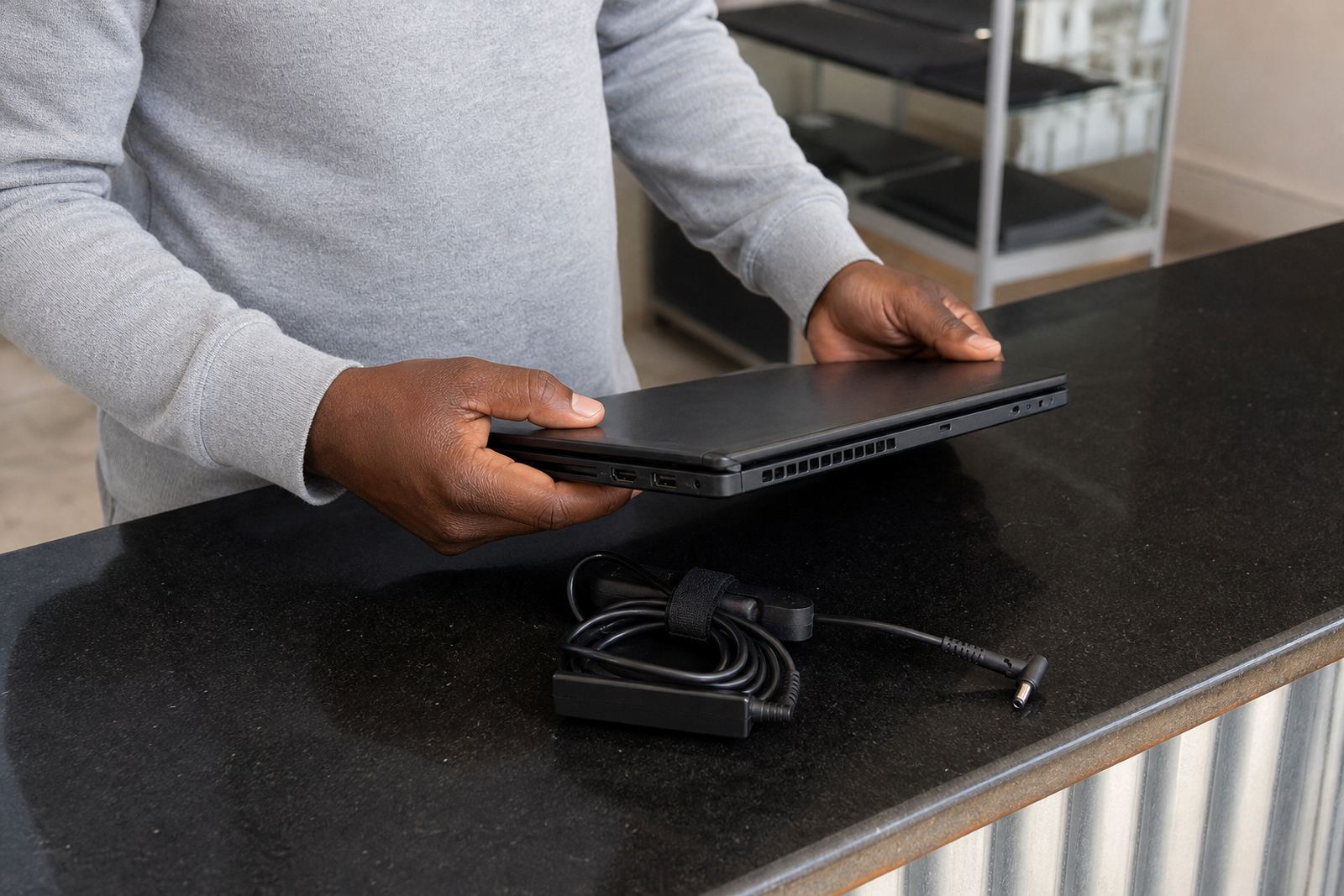
Do a full visual check first. Look at the lid, palm rest, hinges, keyboard, touchpad and base for cracks, dents, missing screws or signs of water damage. On second-hand laptops, minor marks are normal, but broken hinges, bulging panels or liquid stains need careful attention. If the unit was posted from another city and arrived after a courier trip, inspect the corners and ports closely for transport damage.
Open and close the screen slowly. It should move smoothly without wobbling too much or grinding. Check that the screen frame sits properly and that no part is lifting away from the body. In coastal areas like Durban or Gqeberha, also look for rust around screws and charging ports because humidity can cause problems over time.
- Screen has no cracks, pressure marks or backlight patches
- Hinges open evenly and hold position
- Keyboard keys are all present and not sticky
- Trackpad clicks and moves as expected
- Ports are not loose, bent or blocked
Documents and account setup
Once the laptop looks sound, power it on and let it run for a few minutes. Listen for unusual fan noise, repeated beeping or sudden shut-downs. Check that it starts without error messages and that the display comes on cleanly. If the battery is removable, note whether it sits firmly in place. If it is built in, see whether the battery percentage changes normally while plugged in.
Battery condition matters on used laptops. A very weak battery may still work, but the buyer should know exactly what they are getting. If the charger was included, test that it fits properly and charges without flickering.
- Power button works first time
- Battery charges and holds power reasonably
- Charging light comes on, if the laptop has one
- Fan noise is normal and not rattling
- Device does not switch off when moved lightly
Test the screen, keyboard, sound and ports
Run a simple function test on the main parts people use every day. Open a text document and press every key, including shift, enter, backspace and the arrow keys. Type a few lines so you can spot missed inputs. Move the cursor around the screen and click the touchpad buttons or tap functions if that model supports it.
Play a short audio file and make sure both speakers work. Check the webcam and microphone if the laptop has them, especially if it will be used for meetings or study. Then test the USB ports, headphone jack, HDMI or display output, Wi-Fi and Bluetooth if they were part of the sale. Small faults in any of these can affect the use of the laptop right away.
- All keys register properly
- Screen brightness changes without fault
- Speakers produce clear sound
- Camera and microphone work where fitted
- USB and other ports detect devices
Check storage, software and account access
Make sure the laptop is free from the seller’s personal account access before you release payment. It should be signed out of any previous user profile, message or cloud account. If you are unable to create your own login, or the machine still asks for another person’s password, that is a serious issue and the item should not be approved yet.
Check that the operating system loads properly and that the storage shown matches the agreed size. If the seller said it has been reset, open a few settings to see whether it is clean and usable. Some buyers also check whether there are unusual device restrictions or locked features, which can happen if a machine was not properly cleared before resale. A little patience here can prevent a messy dispute later.
If the trade is through an escrow service, confirm your release only when the laptop matches the order and you are satisfied with the inspection. If anything is off, raise it through the buyer support channel straight away and submit photos or video while the issue is still clear.
Use a buyer confirmation checklist before you release funds
Keep your final check simple and factual. The aim is to confirm whether the laptop matches what was agreed, not to guess what may be fixable later. If the laptop has a fault that was not disclosed, report it with evidence before the release step. If the issue is minor and both sides agree on a solution, make sure that agreement is written into the support case so there is no confusion.
TrustIn assists with generic escrow steps such as Delivery Check Support, Item Condition Review, Missing Accessories Help, Wrong Item Support, Incomplete Work Review, Evidence Submission Help and Release Query Support. Buyers across Johannesburg, Cape Town, Durban, Pretoria and Gqeberha can use the same practical process: inspect, compare, record and only then confirm. Always check that any payment provider you use is properly registered and suitable for the service being offered.
- Photos taken of the item from all sides
- Serial number and accessories recorded
- Faults reported before release, not after
- Clear confirmation that the laptop matches the trade
- Support case opened if there is a dispute